 Home
Home Search
 Basics
 Windows Tips
 Applications
 Customize
 About
About


 Imagine that you have a shared folder but you want to know if someone changes something. You, for sure, have heard about auditing files before and may never had a chance to take advantage of this feature. Here you will find a way to do it.
With Windows 7 we can control when a folder has changed and show a message to us.
I know this post can be a little complex, but believe me, the best way to control your computer is knowing how works.
So, why not start from the beginning?
Press WinKey + R, type gpedit.msc, and press Enter.
Go to Local Computer Policy, Computer Configuration, Windows Settings, Security Settings, Local policies, Audit Policy.

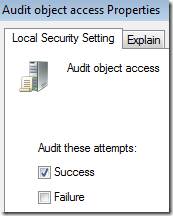
Double click over Audit object access.
Select Success, this way the message will only pop when something has changed.
Other way to do this is not granting permission to files and see how someone try to change it.
Right click over the folder you want and select properties.
Select the security tab.

Press Advanced, go to auditing tab and press continue.

You can choose the users you want to audit. If you prefer to do it for all select everyone.
A list of check boxes appears:

Select Create files / write data , Create folders / append data, Delete subfolders and files and Delete.
This way the operating system creates an event when something changes on the folder. Press Ok on every open window. If you finish now, those messages appears on the event viewer.
We are going to complicate the thing a little bit, creating a scheduled task that shows a message when this happens. Don’t do this if this folder is accesed by a lot of people.
Press WinKey + R type control and press Enter, System and Security.
Select Schedule tasks.

Press Create Task, on the right pane.
A window appears asking you to type a name for the task you are going to create.
Select Triggers Tab, and go to New. You can specify when the task begins, in this case we are going to choose by an event. The rest will show the same as this image:

As you see the message appears if there is an auditing event. This doesn’t discriminate if is in other folder.
Go to Actions tab, press New
Select Action, Start a program:

In the Program/script type msg:

Now in the arguments type the following:
* /server:localhost Someone is writing in your folder
Now if you change something in that folder, the next message appears:


About Angel Luis
I am an Engineer of Telecommunications that love computers. My first computer was a Commodore 16kb, about 25 years ago and since then I am always fighting computers problems. Please visit my entries and ask me about whatever problem you have, I will be pleased to help you. My email is discoveryourpc [at] gmail [dot] com. You can follow me on twitter @agenlu or read my blog www.discoveryourpc.net
- Web
- |
- More Posts (48)
Great guide Angel. Though it seems very long-winded to achieve a simple task (damn MS!). Anyway, thank you :)
P.S. “Go to Local Computer Policy, Windows Settings, Audit Policy.” Should read “Go to Local Computer Policy, Computer Configuration, Windows Settings, Security Settings, Local policies, Audit Policy.
Also, under the Auditing tab in the folders security settings, there appears to be no 'Continue' button. All there is, is an 'Edit' button where you can click 'Add' to add the user accounts as you specified.
Thanks for the comment. I will update the Guide.
I swear that this is what appears in my auditing tab:
Thanks for the comment. I will update the Guide.
I swear that this is what appears in my auditing tab:
Thanks RSVR85 I will update the guide.
I swear that in my audit tab that message appears.
Ah…I have UAC off, it's probably something to do with that. :)
In the virtual machine I use for these things the UAC is on so probably is that.
Anyway, thanks for reading the article.