


Windows 7 comes with plenty of new features. Notably, Libraries.![113 Add Custom Libraries To Windows 7 Explorer [How To]](/wp-content/uploads/2009/09/113.png "Add Custom Libraries To Windows 7 Explorer [How To]")
In Windows 7, the Libraries are not individual folders by themselves. Each library folder is an aggregate of various different folders and each library view is tailored to specific content.
By default , MS have provided us with four libraries. Documents, Music, Pictures & Videos.
What if you want to add a custom Library and assign a specific icon to it?
![1 Add Custom Libraries To Windows 7 Explorer [How To]](/wp-content/uploads/2009/09/1.jpg "Add Custom Libraries To Windows 7 Explorer [How To]")
Step 1.
1a. Open an Explorer window and Right click on Libraries in the left hand pane. Navigate to New > Library.
![26 Add Custom Libraries To Windows 7 Explorer [How To]](/wp-content/uploads/2009/09/26.png "Add Custom Libraries To Windows 7 Explorer [How To]")
1b. Name your Library.
Skip adding folders to the library for now.
Step 2.
You’ll need to use a 256×256 pixel icon that was made for Windows 7 and Vista for them to display properly at all of the available icon view sizes in Windows 7.
Get free icons here (You’ll need to use .ICO files for this tutorial.)
2a. Firstly, open up Notepad.
2b. In Explorer navigate to;
C:\Users\USERNAME\AppData\Roaming\Microsoft\Windows\Libraries
2c. Find the new library and drag it into Notepad.
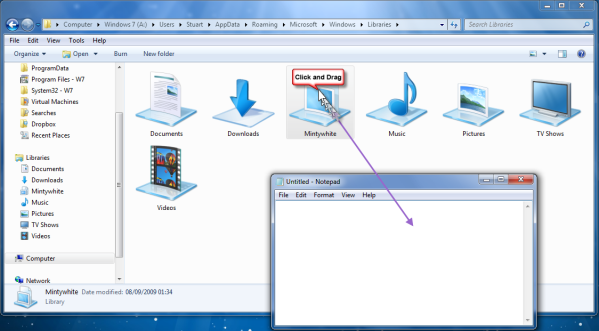
You’ll now have a bunch of text in Notepad.
![101 Add Custom Libraries To Windows 7 Explorer [How To]](/wp-content/uploads/2009/09/101.png "Add Custom Libraries To Windows 7 Explorer [How To]")
Minimize Notepad for the time being.
2d. Find the icon you want to use. Hold Shift & Right click the icon and select Copy as path.
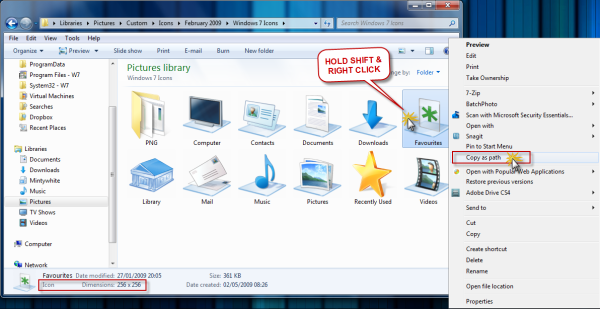
Restore Notepad.
2f. You’ll need to add the line; <iconReference>PASTE PATH HERE</iconReference> Directly beneath the <isLibraryPinned></isLibraryPinned> line in Notepad.
Example
![65 Add Custom Libraries To Windows 7 Explorer [How To]](/wp-content/uploads/2009/09/65.png "Add Custom Libraries To Windows 7 Explorer [How To]")
2g. Save the file, exit Notepad and check out your new Library!
![444 Add Custom Libraries To Windows 7 Explorer [How To]](/wp-content/uploads/2009/09/444.png "Add Custom Libraries To Windows 7 Explorer [How To]")
Step 3.
To are several ways to add new folders to your library.
Method 1.
The first is to double click the Library and select Include a folder. (only applies when library is empty)![43 Add Custom Libraries To Windows 7 Explorer [How To]](/wp-content/uploads/2009/09/43.png "Add Custom Libraries To Windows 7 Explorer [How To]")
Method 2.
Right click on the Library, choose Properties.
Click on Include a folder…
You can optimise the library for; Music, Pictures, Video & Documents. With this method you can also choose whether or not the library is shown in the navigation pane.
Hit Apply > OK when you’ve finished.
![99 Add Custom Libraries To Windows 7 Explorer [How To]](/wp-content/uploads/2009/09/99.png "Add Custom Libraries To Windows 7 Explorer [How To]")
Method 3.
In Explorer navigate to the folder you wish to add to your Library. Make sure the folder is selected (left click once) & Right click ON the folder. Go to Include in library and choose the library you want the folder to be included in.
![77 Add Custom Libraries To Windows 7 Explorer [How To]](/wp-content/uploads/2009/09/77.png "Add Custom Libraries To Windows 7 Explorer [How To]")
See this article by Thomas on putting Libraries to good use.
Looking for something else?
|





Comments